
Seller photos, Catalog QC and your warehouse photos
Understand who took each product photo and what it can tell you. Compare seller images, Catalog QC references, your warehouse photos and buyer arrival photos.
Before using a product photo to make a buying decision, check where it came from. An attractive seller image, another buyer’s inspection album and the photos of your own order answer different questions.
Start with the question you are trying to answer
If you are choosing a colour, the seller gallery is a starting point. If you want to understand where a seam sits, a matching reference album may add useful angles. If you want to know whether your received item has a mark, use your own warehouse photos. A source that helps with one question may not answer the next.
Record the model and selected option alongside any saved reference. Similar names or familiar logos are not enough to establish that two albums show the same version. Look for matching details, and keep uncertainty visible when the option cannot be confirmed.
Compare the photo sources
| Photo source | What it helps you check | Main limit |
|---|---|---|
| Seller product photos | Advertised model, colour and design | They do not show your own received item |
| Catalog QC references | Details visible on an earlier item | Another order may differ from yours |
| Your warehouse photos | The item received for your order | Only the photographed areas are visible |
| Buyer arrival photos | Appearance and packing after delivery | Shipping and order conditions belong to that buyer |
Use seller photos to understand the product
Look for a full view, close-ups and clear photos of each colour option. A photo with a label or logo does not prove that every product offered by the seller is identical. Match the gallery with the exact option you plan to order.
Use Catalog QC as a reference
Catalog QC can help you identify details worth examining. Check whether the reference shows the same model and colour. Treat it as background information rather than approval of your future order.
Use your warehouse photos to inspect your order
When your item arrives, compare its colour, selected size, included parts and visible condition with the product page. If an area matters to your decision but is unclear, ask for another view. For instructions on reviewing photos and requesting Detailed Photo images, use the warehouse photo guide.
Photos have limits. They cannot show every hidden detail, guarantee fit or replace specialised authentication or function tests.
Use arrival photos for real-world context
The buyer photo collection can help you understand how products and packaging look after delivery. It does not replace inspection of your order or provide a shipping quote for your parcel.
Example: arrival context versus order inspection
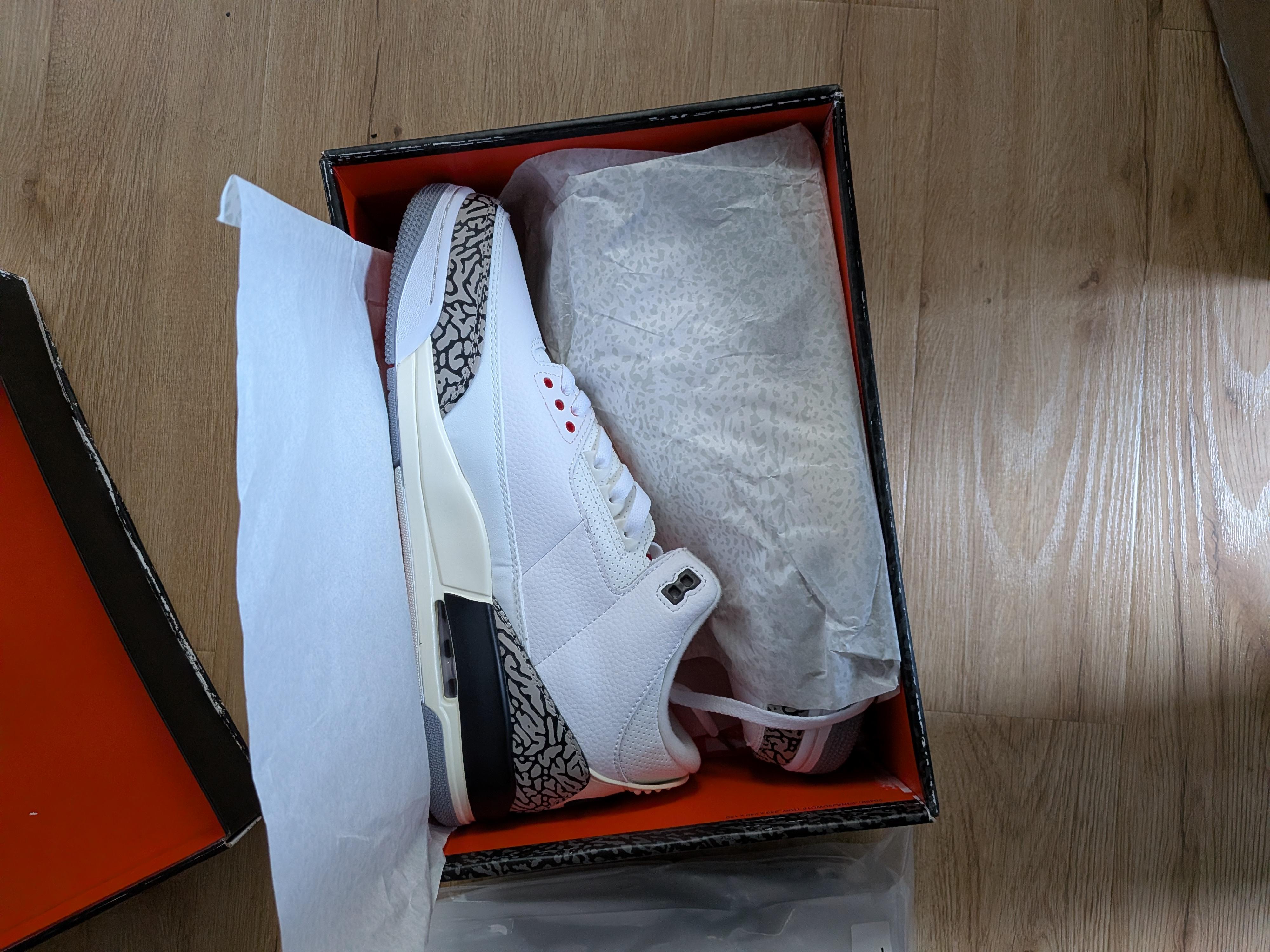
This is a buyer arrival photo from the 10kg streetwear delivery. It shows visible panels, colour accents and a retained shoe box for that pair. It does not show your order, the pre-shipping warehouse condition or every angle of the shoes.
If your question is about an inside label, this source cannot answer it because that area is absent. The useful next step is to find or request the relevant view of your own item, rather than accumulating more unrelated pictures.
Resolve a disagreement between photos
First check whether the images show the same option, side and stage of the order. Then account for angle, lighting, folds and distance. If a difference still matters, name the detail and request a comparable clear view. Avoid turning a possible lighting difference into a confirmed defect.
For example, ask “please show the outer side of both shoes under the same light” rather than “is this pair good?” Keep the response with your order reference. The photo-source comparison helps choose evidence; the inspection guide explains the actual review and request process.
When comparing products, start with the appropriate category. If a price or label is unclear, read the verified-label and USD-price explanation.